Google Ads shows 48 conversions this month, while GA4 shows 39 key events for the same campaign. The client asks: "Which number is right?" Often both are right by their own rules; they simply do not answer the same question.
A GA4 vs Google Ads conversion gap appears in almost every account and is rarely a single mistake. It is usually several small differences stacked together: the attribution model, the report date, the window length, the counting method and tracking loss.
This guide is a problem-solving walkthrough. First we separate a normal gap from a real problem, then list the 10 main causes, followed by a step-by-step check and a checklist. The attribution models themselves are covered in our data-driven vs last click article; here the focus is on why the numbers diverge.
Short answer: Google Ads credits a conversion to an ad click and reports it on the click date. GA4 reports a key event across all channels on the date the event happened. Because model, date, window and counting rules differ, the numbers diverge.
When a gap is normal and when it is a problem
A gap is the mismatch that comes from two systems measuring the same event with different rules. Google itself says in its official documentation that such discrepancies are common and can occur even with a correct setup. Source: Google Ads Help.
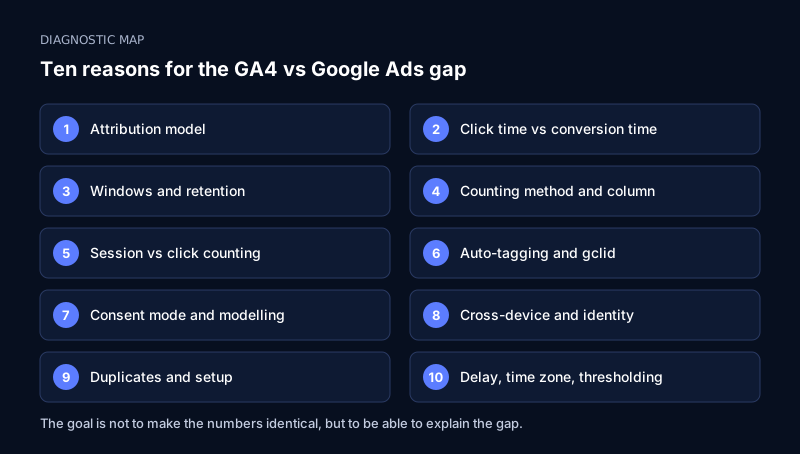
In practice, separate three situations:
| Situation | Meaning | What to do |
|---|---|---|
| The gap is small and stable | Rule differences, a normal case | Document it and state the rule in every report |
| The gap changes week to week | Delay, date or window effects are possible | Compare with the same date mode |
| The gap suddenly jumps | A setup change or tracking error is likely | Check GTM, consent and link changes |
Trying to "fix" a normal gap wastes time. The goal is not to make the numbers identical but to explain the gap and to catch sudden changes early.
The Azerbaijan context
In local online stores, orders are often confirmed by cash on delivery, and on lead sites the actual sale is recorded in the CRM after a phone call. In such cases both systems only see the on-site event (a form, an "order" button), not the real sale. This is why clarifying the measurement logic comes before analysing the gap.
Terminology: key event, conversion and imported conversion
In GA4, important events are called "key events". According to Google's official explanation, a key event measures an action that is important to the business, while a "conversion" is an important action used to measure ad campaign performance and optimise bidding. Source: Conversions vs. key events.
This difference affects the numbers directly. Google says key events are designed for analysing traffic acquisition, user behaviour and site journeys, while conversions give a cross-channel, advertising-focused view.
Three separate sources of numbers
- GA4 key event — the counts you see in GA4 reports (Reports, Explore).
- Google Ads native conversion — a conversion action measured with the Google tag or set up directly in Google Ads.
- Conversion imported from GA4 — a conversion created from a GA4 event and passed to Google Ads.
One click on the same button can be counted in three sources under three sets of rules. Before opening a report, write down which of the three you are comparing.
Practical check
In Google Ads, open "Goals" → "Conversions" → "Summary" and see the source of each conversion action: "Website", "Google Analytics (GA4)" or another. If the same action is set up from two sources, there is a duplication risk; we cover this later.
Cause 1: attribution model difference
Attribution is the rule that decides which touchpoint (click, channel) a conversion is credited to. When two systems use different models, the same sale lands in different places.
According to Google's description, GA4 attribution reports offer three models: data-driven, paid and organic last click, and Google paid channels last click. In all models, direct visits receive no credit, except when the whole path consists of direct visits. Source: Get started with attribution.
Google also explains that conversions are event-scoped, so they can use data-driven attribution and focus on the ad touchpoint that drove the result rather than on the start of the session. Key events in the GA4 Reports section work with a different logic.
Practical check
- GA4: Admin → Data display → Events → Attribution settings. What is the "Reporting attribution model"?
- Google Ads: open the attribution model of the conversion action.
- Compare the same model in both reports; if that is not possible, note the difference.
Example (calculation example)
A buyer first arrives from a Meta ad, then clicks a Google Ads brand ad and places an order worth 240 AZN. According to Google Ads the order belongs to the ad. If "Paid and organic last click" is chosen in GA4 Reports, the credit goes to whichever channel was clicked last. The same order can appear under different channels in the two reports.
Cause 2: date difference — click time vs conversion time
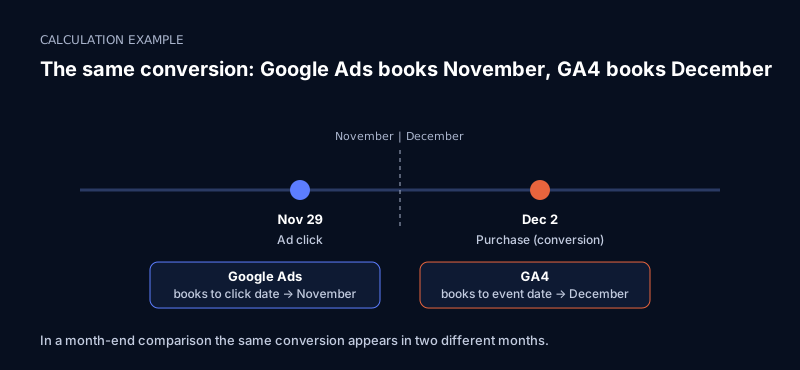
Google Ads records conversions on the date of the click, while GA4 records them on the date the conversion happened. This is the most common source of difference in month-end reports.
Google's official example: a user clicks an ad on July 19 and buys on July 20. Google Ads attributes the conversion to July 19, GA4 to July 20. Source: Create conversions from Google Analytics events in Google Ads.
Example (calculation example)
Suppose the ad is clicked on November 29 and the purchase happens on December 2. In the November report Google Ads shows this conversion and GA4 does not; in December it is the other way round. In a month-end comparison the same conversion appears in two different months.
Practical check
- Compare over a longer period (e.g. 30-60 days) and leave out the last 3-5 days.
- In Google Ads, check the column options for conversion date (click time / conversion time) and compare in the same mode where possible.
- As Google also notes, attribution timing view settings in GA4 (interaction time, conversion time) can change how a report looks.
Cause 3: windows and retention period
The conversion window defines how long after a click a conversion can still be credited to the ad. In GA4, the similar concept is called the key event lookback window.
Google states that Google Ads cookies expire 90 days after the click, while the Analytics cookie can last up to 2 years. A Google Ads conversion window is set between 1 and 90 days. A conversion after the window is not recorded in Google Ads, but GA4 may still record it.
Practical check
- Check the window of the conversion action in Google Ads.
- Look at the key event lookback window setting in GA4.
- In sectors with a long decision cycle (cars, real estate, course sign-ups), bring the two windows as close as possible. For imported conversions some settings may not be editable in Google Ads; Google mentions this as well.
Cause 4: counting method and column difference
The counting method defines how many conversions one click can record for the same user. Google Ads has two options: "Every" (every conversion after the click) and "One" (only one conversion per click).
Google's example: after an ad click, a user fills in a lead form in two different sessions. GA4 shows two key events. If you import it with the "One" method, Google Ads shows one conversion; with "Every" it may show two.
The "Conversions" and "All conversions" columns
The "Conversions" column in Google Ads shows only actions set to "Primary" and uses the chosen counting method. "All conversions" also includes "Secondary" actions, view-through conversions (if the model includes them) and some other sources. Google lists this as a frequent reason for discrepancies.
Another nuance: imported conversions created through the GA4 interface are set to "Secondary" by default. To use them for bidding, you need to change the action optimisation setting in Google Ads.
Practical check
- Check which column you are comparing: "Conversions" or "All conversions"?
- For each conversion action, look at its Primary/Secondary status and counting method.
- Write the choice clearly: "One" for lead forms, and for sales a method that matches the order count; add the decision to the reporting document.
Cause 5: session vs click counting
Google Ads counts clicks, GA4 counts sessions. One click does not always produce one session: the user may leave before the page loads, the tag may not fire, the same click may open a repeat session.
Google describes the causes of click and session discrepancies, and checks of linking and export settings, on a separate help page. Before investigating the conversion gap, look at the click-to-session ratio: if a large share of clicks does not appear as sessions, the problem starts before the conversion level.
Practical check
- Put the click count of the campaign in Google Ads next to "google / cpc" sessions in GA4 for the same period.
- On sites with a high mobile share, slow loading can cause session loss; look at page speed. See our Core Web Vitals guide for this topic.
Cause 6: auto-tagging, gclid and tracking loss
Auto-tagging adds a unique identifier (GCLID) to a Google Ads click. This identifier tells GA4 that the click came from Google Ads. Google states that for import, auto-tagging must be on in the Google Ads account and the GCLID must not be altered or dropped by the website (for example, by redirects).
Typical problems
- A redirect on the landing page strips URL parameters.
- The payment or form page moves to another domain and the session breaks.
- Tracking is not configured across separate subdomains.
- The link is broken or connected to the wrong Google Ads account.
Practical check
- Google Ads: Admin → Settings → Account settings → is auto-tagging on?
- Click an ad link and check that the gclid parameter stays in the URL up to the final page.
- GA4: Admin → Product links → Google Ads links; confirm the right account is linked.
Local context
In Baku, many sites receive leads through a WhatsApp button, a call button or Instagram DMs. If these events are not tracked separately, they are lost in both systems. In such cases it helps to create a helper event such as "WhatsApp button click" and set it up under the same name in GA4 and Google Ads.
Cause 7: consent mode and modelled conversions
Consent mode adjusts the behaviour of tags according to the user's consent. When consent is not given, not all conversions may be directly observed. Google can fill this gap with modelling.
According to Google's documentation, reports based on imported conversion data may include modelled conversions as estimates when Google cannot observe all conversions. The Conversions vs. key events page also says conversions automatically use behavioural modelling and several identity signals. For this reason Google Ads can sometimes show more conversions than GA4 key events.
Google also states that from June 15, 2026, Consent Mode became the single control for collecting Google Ads cookies and IDs from the Google Analytics tag. When comparing date ranges before that change, keep in mind that the rules were different.
Practical check
- In Tag Assistant, check that the cookie banner passes consent signals to Google tags correctly.
- Compare the period when the consent rate changed (new banner, new language version) with the period when the conversion gap changed.
- Modelled conversions are estimates; do not present them as exactly counted sales.
Cause 8: cross-device and identity difference
A user may see an ad on a phone and place the order from a computer. If the systems can link the two devices to the same person, the conversion is credited to the ad; if not, it is lost or lands in another channel.
The two platforms may not use identity signals in the same way. Google says conversions automatically include several identity signals. Exactly which signals are used in which report depends on account settings, so the full cause of a gap is hard to state from the outside.
Practical check
- Compare the device split in the two reports: if the gap is larger on mobile traffic, suspect a cross-device effect.
- In GA4, check which Reporting identity setting is used and document it.
Cause 9: duplicate counting and wrong setup
Duplicate counting means the same conversion is recorded again from several sources. The most common case: both a native Google Ads tag and the same conversion imported from GA4 are set to "Primary" and enter bidding.
Google Ads' official documentation does not spell this scenario out directly, but the logic is clear: if one action is counted as two "Primary" actions, the "Conversions" column is inflated. There are real questions and answers about this in the Google Ads community, but they are not official documentation.
Other setup problems
- The same tag fires twice in GTM (for example, both on page load and on the "thank you" page).
- The event is sent again when the "thank you" page is refreshed.
- Event names differ between GA4 and Google Ads; Google says the event names must match.
- Test and internal traffic is not filtered.
Practical check
- Google Ads → Goals → Conversions → Summary: how many "Primary" actions exist for the same operation?
- Place a test order in GTM Preview mode and see how many times the event fires.
- Confirm in GA4 DebugView that the same order is recorded once.
Cause 10: delay, time zone and thresholding
Data delay
Google states that Analytics conversion data is passed to Google Ads up to 24 hours after the conversion. For a newly imported key event, the first data can also take up to 24 hours to appear. Comparing yesterday's numbers today is therefore misleading.
Time zone
If the time zone of the GA4 property differs from that of the Google Ads account, conversions at the day boundary can fall on different days. Check the time zone of both accounts and compare over as long a period as possible.
Thresholding and sampling
In some GA4 reports, small groups of values can be hidden for privacy reasons, and sampling can apply to large queries. The exact conditions depend on the report type and account settings; look for the warning icons in the report header.
Practical check
- Leave the last 2-3 days out of the comparison.
- Write the time zones of the two accounts side by side.
- If there is a warning icon at the top left of a GA4 report, simplify the filters or re-check with a different report type.
Step-by-step diagnostic plan
Investigate the gap in order; each step narrows the result.
| Observation | Likely direction | Section |
|---|---|---|
| A gap at month end that reverses next month | Click time vs conversion time | Cause 2 |
| The gap changes week to week | Delay and window effects | Cause 3, 10 |
| The gap suddenly jumps | Setup, consent or link change | Cause 6, 7, 9 |
| The numbers are counted in different units | Session vs click counting, counting method | Cause 4, 5 |
| The attribution model differs | Each system's own rules | Cause 1 |
- Choose the unit of comparison. The Google Ads "Conversions" column against the key event count of the same event in GA4. Same column, same conversion action.
- Extend the period. At least 30 days, leaving out the last 3-5 days.
- Check the date mode. Note the click time vs conversion time difference.
- Write down attribution and windows. Fill in a model and window table for both systems.
- Check the counting method. Is "One" or "Every" correct for each conversion?
- Look at Primary/Secondary status. Is there no duplicate Primary action?
- Auto-tagging and gclid. Test the link and see the parameter survive to the final page.
- Place a test order. Confirm with GTM Preview and GA4 DebugView that it is recorded once.
- Account for consent and modelling. Does the gap coincide with a consent change?
- Document the remaining gap. If a small unexplained gap remains, record it as a "rule difference".
Example (calculation example)
Suppose the monthly result is: Google Ads 48 conversions, GA4 39 key events. The gap is 9, about 19%. After the checks, the following breakdown emerges: - 4 conversions from the date difference (clicks at month end sold in the next month); - 3 conversions from the counting method (a lead counted twice with "Every"); - 2 conversions modelled or consent-related.
These numbers are a made-up scenario meant only to show the method. In a real account the breakdown will differ. The key idea: splitting the gap into categories makes it manageable.
Checklist
Go through this list for every reporting period:
- [ ] The same period, the same event, the same column are compared.
- [ ] The last 3-5 days are left out of the comparison.
- [ ] The date mode (click time / conversion time) is noted.
- [ ] The GA4 attribution model and the Google Ads conversion model are written down.
- [ ] The conversion window and the key event lookback window are written down.
- [ ] The counting method ("One" / "Every") is correct.
- [ ] "Conversions" and "All conversions" columns are not mixed up.
- [ ] Primary/Secondary status is checked, and there is no duplicate Primary action.
- [ ] Auto-tagging is on, and the gclid is not lost.
- [ ] GA4 and Google Ads accounts are linked correctly.
- [ ] Event names match across the two platforms.
- [ ] The consent banner controls tags correctly.
- [ ] Time zones are checked.
- [ ] A test order is recorded once.
- [ ] The remaining gap is explained in the report as a "rule difference".
Which number to look at, and when
Google's own recommendation: for campaign performance and attribution, use the Conversions performance report in the GA4 Advertising section; for traffic acquisition, behaviour and site journeys, use Reports and Explore, but it does not recommend those reports for measuring media performance.
This can be turned into a practical rule:
| Question | Source to use |
|---|---|
| Campaign and bidding decision | Google Ads conversion (Primary) |
| Cross-channel comparison | GA4 Advertising → Conversions performance |
| Site behaviour, journey | GA4 Reports / Explore (key events) |
| Real sales and revenue | CRM or system report (source of truth) |
When explaining to a client: "Google Ads tells how many conversions the ad brought, GA4 tells what happened on the site. The real sale is confirmed by the CRM." We cover which metrics belong in the report in our marketing KPI article.
Frequently asked questions
Why do GA4 and Google Ads numbers not match?
Because the two systems measure with different rules: attribution model, report date (click time vs conversion time), window length, counting method, consent and modelling. Google itself says such discrepancies can occur even with a correct setup.
Can Google Ads show more conversions than GA4?
Yes. Causes can include counting by click date, modelled conversions, use of the "All conversions" column and the "Every" counting method. First check that the same column and the same period are compared.
Which number should I trust?
It depends on the type of decision. For ad optimisation and bidding, look at the conversions set to Primary in Google Ads; for site behaviour, look at GA4. For revenue decisions the most reliable source is your own CRM or sales system.
Is a key event the same as a conversion?
No. According to Google, a key event is a GA4 event that measures an action important to the business. A conversion is used to measure ad campaign performance and optimise bidding. A Google Ads conversion can be created from a key event.
Should I use an imported GA4 conversion and a native conversion at the same time?
You can keep both, but counting the same operation as two "Primary" actions can create duplicates. In most cases it is cleaner to keep one action Primary and the other Secondary for observation.
What percentage of gap is normal?
Google gives no specific percentage for a normal gap, so we cannot give a made-up threshold. A practical test: if the gap is stable and explainable, it is normal; if it changes suddenly, check the setup.
Why are yesterday's conversions not yet visible in GA4 or Google Ads?
Google states that Analytics conversion data can reach Google Ads with a delay of up to 24 hours. Keep the last 2-3 days out of the comparison.
Conclusion
A GA4 vs Google Ads conversion gap is often the result of different measurement rules rather than an error. When you split the gap into 10 categories and check them in order, you either find the explanation or uncover a real tracking error. Either way the report becomes more trustworthy.
As a next step, run the checklist above on one campaign and add the result to the client report as a "measurement rules" section. If you want your GA4 setup and conversion tracking professionally reviewed, see our GA4 service and Google Ads service. For hands-on learning, there is our Web Analytics, GA4 and GTM course.
GA4 and Google Ads numbers do not match? Let's audit your measurement.
GA4 service